
You install a Slack bot, authorize the workspace, and see a cheerful success message. Then you open the target channel, mention the bot, and get silence. It doesn't appear in the member list, it can't read the thread, and every attempted post fails. That experience makes the integration look broken, but the usual problem is simpler: installing a Slack app isn't the same as adding its bot to a channel.
Slack access is governed at the conversation level. A production deployment therefore has two separate actions, workspace installation and channel invitation, followed by an OAuth check that matches the bot's intended behavior. Once you treat those as separate controls, “slack add bot to channel” stops being a guessing exercise and becomes a repeatable operations task.
Table of Contents
- Why Your Bot Installs but Still Cannot Post
- Inviting a Bot to Public and Private Channels
- Matching OAuth Scopes to Bot Behavior
- Connecting a Donely AI Agent to Slack
- Troubleshooting Bots That Will Not Respond
- Governing Bot Access Across Multiple Channels
Why Your Bot Installs but Still Cannot Post
A team recently installed an analytics bot in a client workspace. OAuth completed, the app appeared under installed applications, and the developer expected it to monitor the reporting channel. The bot still failed to post, so the first debugging pass examined code, event handlers, and token validity.
The failure was channel membership. Slack access is scoped to conversations, and a bot token can access a conversation when the bot is a member. The conversations.history method reads channel message history, but installation alone does not add the bot to a specific conversation. The Slack channel history documentation makes that boundary explicit.
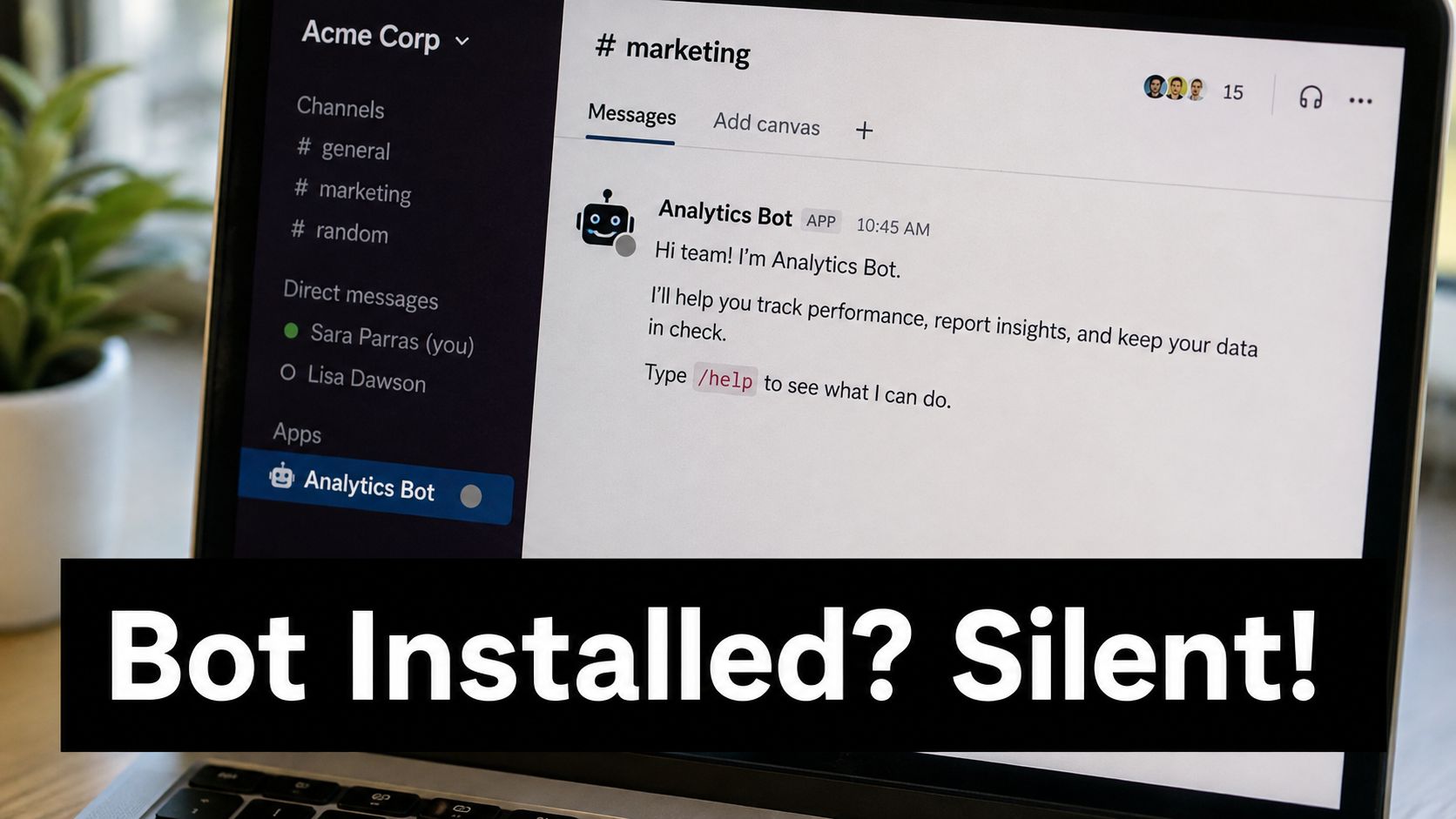
Installation and membership are different controls
A reliable deployment has two separate operations:
- Install the app in the workspace and authorize its bot token.
- Invite the bot into every channel it must read from or use.
Slack generally will not let a bot participate in a channel until someone invites it. Private channels require an existing member to extend that invitation. The Slack read-only bot implementation notes describe the practical invitation flow and the need to confirm posting scopes such as chat:write.
This distinction matters significantly for agencies. A bot can be installed correctly in a client workspace while remaining absent from the private channel containing operational data. Public-channel behavior does not reliably predict private-channel behavior, and a successful installation screen does not prove that the bot can see or post in the intended conversation.
Production rule: Treat each target channel as an explicit access decision. Record the invitation, verify membership, and test the bot in that channel before declaring deployment complete.
Slack analytics can count messages posted by apps and bots, so adding a bot creates a measurable workspace event rather than an invisible implementation detail. Maintain a channel-by-channel inventory for troubleshooting, access reviews, and governance.
Inviting a Bot to Public and Private Channels
The invitation itself is usually quick. The important part is choosing a method that matches the channel type and then verifying the result instead of assuming Slack accepted the request.
Use the channel itself first
Open the target channel and try the slash command:
/invite @YourBotName
Slack's practical workflow is to invite the app from inside the channel or through the channel's integrations controls. If the bot name resolves, select it and submit the invitation. Then inspect the channel member list and confirm that the bot appears there.
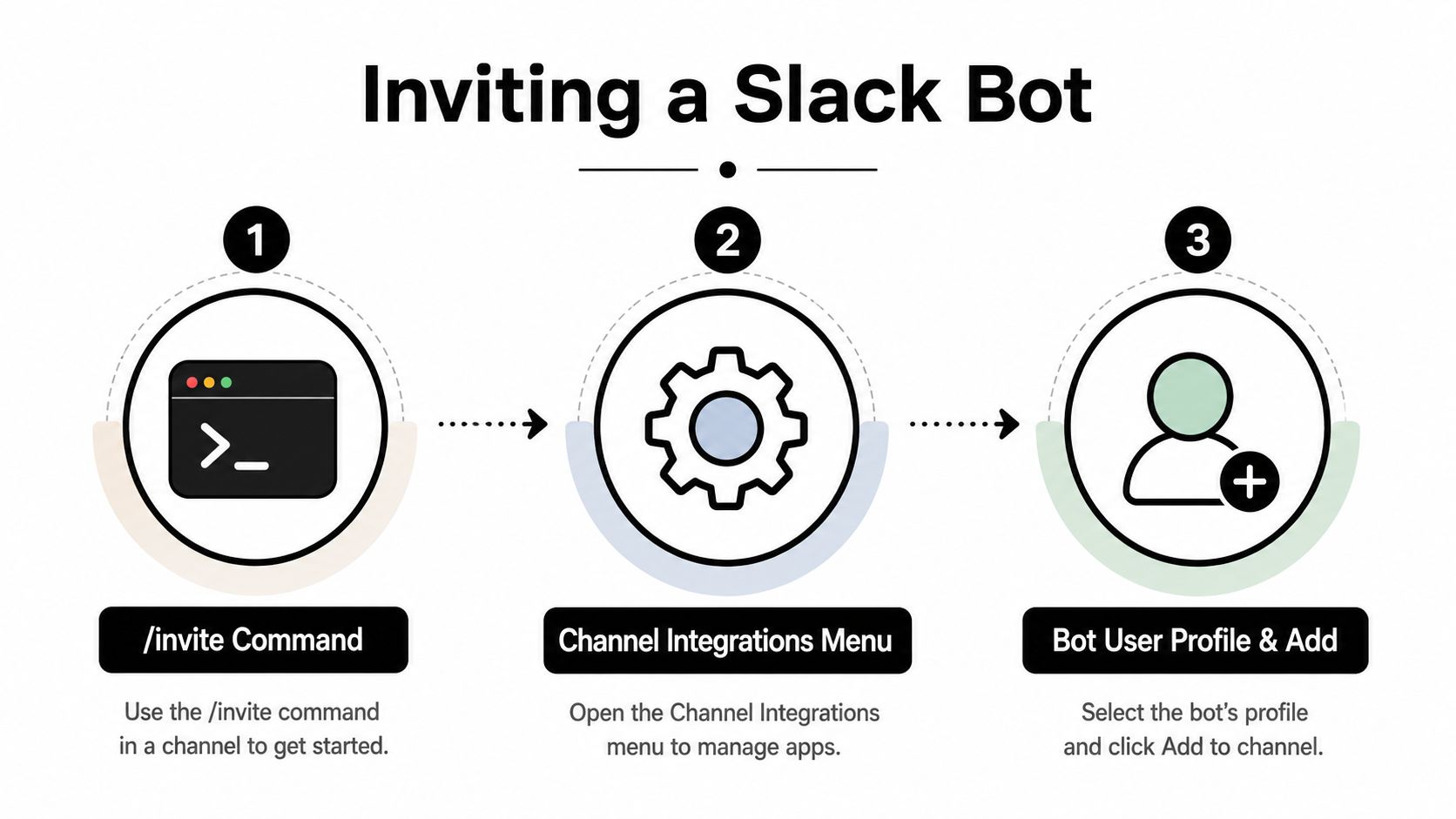
The second path is the channel integrations menu. Open the channel details, locate the area for apps or integrations, choose the bot, and add it to that conversation. A third option is to mention the bot in the channel when the workspace's app configuration supports mention-based interaction. These paths reflect Slack's current pattern of handling app participation through channel membership rather than relying only on workspace installation, as outlined in this guide to adding a bot to a Slack channel.
Public channels can sometimes allow a bot to join through an approved configuration, but don't build an operational process around that assumption. The bot still needs the right posting permissions, and workspace settings can prevent automatic joining. For public-channel posting without a direct mention, check whether chat:write.public is appropriate. If the bot needs to join public channels, channels:join may also be relevant.
Private channels require a member's invitation
Private channels enforce the stricter boundary. An existing member must invite the bot, and the bot must have the permissions needed for the private conversation. If an agency operator isn't a member of the client's private channel, asking them to run the invitation won't work until the client provides an authorized member to perform it.
After inviting the bot, test the exact behavior you need:
- Read test: Confirm that the bot can receive or retrieve messages from the channel.
- Post test: Ask it to publish a clearly identifiable test message.
- Mention test: Mention the bot and verify that the event reaches the application.
- Membership test: Check the channel member list, not just the installed-app list.
For deployments involving many channels, queue invitations and monitor API responses rather than firing channel-management calls indiscriminately. Slack documents conversations.invite as Tier 3, with 50+ requests per minute, while some invite-related methods are Tier 2, with 20+ requests per minute, in its shared-channel invitation method documentation. Those limits can become the bottleneck when a bot is being added across a large channel set.
For teams that want to connect Slack with broader automation systems, the Donely integrations directory can help map Slack participation to the rest of an operational stack. It doesn't remove Slack's channel-membership requirement, so invitation and verification still belong in the setup checklist.
Matching OAuth Scopes to Bot Behavior
A bot can be a channel member and still fail because its token doesn't authorize the action you expect. Scope selection should begin with the bot's job, not with a copied list of permissions from another app.
A bot that only posts replies has a narrower requirement than one that joins channels, reads private conversations, listens for events, and publishes without being mentioned. Granular scopes are valuable because they let administrators approve a defined behavior instead of granting access that the application may never use.
Map the action to the permission
| Scope | What It Enables | When to Use |
|---|---|---|
chat:write |
Posting messages as the bot | The bot responds in channels where it's already present |
chat:write.public |
Posting in public channels without a direct invitation in supported configurations | The bot must publish to approved public channels without relying on a mention |
channels:join |
Joining public channels through the API | The application needs controlled public-channel discovery or entry |
channels:read |
Reading public-channel metadata | The bot needs to identify or inspect public conversations |
groups:read |
Reading private-channel metadata | The application must work with private-channel information |
groups:write |
Performing supported private-channel actions | The bot needs private-channel management capabilities, subject to Slack's membership rules |
The exact combination depends on whether the bot must join, read, post, or react to events. Slack's documentation confirms that message-history access remains tied to conversations where the bot is a member, so an OAuth scope won't substitute for a missing invitation. The permission and the membership boundary work together.
For a wider explanation of how systems connect across business applications, what is EAI for business is useful context. Enterprise application integration helps frame Slack as one governed endpoint in a larger workflow, rather than as an isolated chat feature.
Start narrow, then test
Request the smallest set of scopes that supports the initial workflow. Add broader access only when a documented requirement justifies it. This reduces security-review friction, limits accidental data exposure, and makes failures easier to interpret because each permission maps to a concrete behavior.
Use Donely's Hermes API when you need to connect an agent workflow to external systems while keeping the Slack side explicit. The operational principle remains the same: define the intended channel action, grant the matching scope, invite the bot to that channel, and validate the result with a real message.
Connecting a Donely AI Agent to Slack
A managed agent platform can remove application hosting and deployment work, but it won't bypass Slack's native access model. Donely agents still need Slack app credentials, an authorized workspace connection, and an invitation to each channel the agent must use.
A practical setup looks like this:
- Launch the agent instance and define its intended role, such as responding to support questions or handling an internal workflow.
- Authorize Slack with the app credentials and permissions required for that role.
- Enable the Slack channel in the agent's integration settings.
- Invite the bot into each approved Slack conversation using
/invite @YourBotName, the channel integrations menu, or an approved mention flow. - Run a channel-specific test for reading, posting, and mention handling.
Keep client boundaries explicit
This matters when one operator manages personal, business, and client workloads. Donely's multi-instance model gives each agent instance isolated Slack app credentials, data boundaries, and access controls, so a client deployment can remain separate from another client deployment. Per-instance RBAC and scoped data access also make it easier to review which operator or agent can perform a given action.
That isolation doesn't mean every channel becomes available automatically. Each workspace still applies its own Slack membership and permission rules, and a private client channel still needs an authorized member to invite the bot. The platform reduces DevOps overhead, while Slack remains the system that decides whether the bot belongs in a conversation.
For teams evaluating agent behavior before connecting many channels, Donely's Hermes agent provides the relevant product context. Keep the rollout controlled: connect one workspace, invite one approved channel, test the behavior, and expand only after the access record and response path are clear.
Troubleshooting Bots That Will Not Respond
A bot can be installed successfully and still remain silent because installation authorizes the app, while channel membership controls where it can operate. In production, private-channel scoping causes many failures that look like code or token problems. Check these questions in order: is the bot a member, can it perform the action, can the application receive the event, and is the token valid?
Match the symptom to the fix
- The bot isn't visible in the channel: It has not been invited. Run
/invite @YourBotName, then verify the channel member list. - The bot reads but can't post: Check
chat:write, refresh or reinstall the authorization if scopes changed, and retest in the same channel. - The bot works in public channels but not private ones: Confirm that an authorized private-channel member invited it and that the private-channel scopes support the required behavior.
- The bot responds only when mentioned: Review event subscriptions and message-event handling. The configuration may intentionally trigger only on mentions.
- History retrieval returns no usable messages: Test
conversations.historywith the bot token and the target conversation. Access depends on the bot being a member, as described in the conversation history reference. - Every request fails: Inspect token configuration, revoked credentials, workspace authorization, and application logs before changing channel code.
Use one known message in one channel for the first test. Then compare the channel membership record, Slack app settings, event-delivery logs, and token response. This separates invitation failures from missing scopes and delivery failures without changing several variables at once.
For teams building the surrounding automation, this practical AI workflow guide provides process context, but Slack-specific membership and permission checks still determine whether the bot can respond.
Governing Bot Access Across Multiple Channels
Once several agents serve different departments or clients, channel membership becomes an access inventory. Workspace installation alone is too broad a deployment record because it doesn't tell you which conversations each bot can access.
Use a simple governance register for every instance:
- Name the bot by function and owner: Make the channel member list understandable during an audit.
- Record approved channels: Track public and private conversations separately.
- Review scopes against behavior: Remove permissions that the agent no longer needs.
- Test after changes: Recheck reading, posting, and mention handling when scopes or channel membership change.
- Monitor invitation operations: Queue large rollout jobs and respect Slack API limits documented for invitation methods.
The reliable pattern is installation plus per-channel invitation during setup. Slack's access model is channel-scoped, and the bot must be invited to every conversation it reads. Centralized logs, per-instance RBAC, and a documented owner give operations teams a way to retire access when a client project ends or an agent's role changes.
For agencies, this approach also prevents a common mistake: treating a successful app authorization as proof that a private client workflow is ready. It isn't. The channel member list, OAuth scopes, event delivery, and test message are the evidence that the deployment works.
Donely lets you host and manage isolated AI employee instances with Slack connectivity, scoped access controls, and centralized operational visibility. If you want to deploy an agent without rebuilding the invitation and governance process for every client workload, visit Donely and set up a controlled Slack channel workflow.