
You pushed a commit, the pipeline went red, and then you noticed the actual problem. Maybe it was a bad config change, a deleted guard clause, or a rushed refactor that looked clean in review but broke production behavior. The instinct is often to “go back” to an earlier point in history.
That instinct is where people get into trouble with Git.
Most junior developers asking about Git revert to specific commit are mixing up two very different actions. Data shows 68% of developers asking about “reverting to a specific commit” on Stack Overflow and Reddit intend to restore their working directory to an earlier state, not just undo one commit, which is why git revert gets misused when git reset --hard <hash> or checking out another commit is what they really meant, as discussed in this Stack Overflow thread on reverting without losing history.
If you're working on a shared branch, safety matters more than speed. The right command fixes the mistake. The wrong command creates a second mistake for everyone else.
Table of Contents
- The Safe Way to Undo Changes in Git
- How to Revert a Specific Commit Step by Step
- Git Revert vs Git Reset A Critical Decision for Your Repository
- Handling Advanced Cases Reverting Merges and Commit Ranges
- Navigating Conflicts During a Revert
- Pushing Reverts and Collaborating with Your Team
- Conclusion Master Revert for a Healthier Codebase
The Safe Way to Undo Changes in Git
The professional answer to a bad pushed commit usually isn't “delete it.” It's git revert.
git revert <commit-hash> doesn't erase the original commit. It creates a new commit that applies the inverse of that earlier change. That matters because the repository history stays intact. Your teammates still see what happened, when it happened, and how it was corrected.

The confusion starts with the phrase “revert to a commit.” In everyday speech, people use that phrase to mean “make my project look like it did back then.” In Git terms, though, reverting a commit means undoing the patch introduced by one specific commit. It does not mean rolling the whole branch back to that historical snapshot.
Practical rule: If you want to undo one bad change while keeping later good work, use
git revert. If you want your branch pointer and working tree to move back to an earlier state, you're talking aboutgit reset, checkout, or a new branch from an older commit.
A simple example makes the difference obvious:
- Commit A adds a new API endpoint.
- Commit B changes validation and introduces a bug.
- Commit C updates tests and docs.
If you run git revert B, Git creates a new commit that cancels out the changes from B. A and C stay in history and remain part of the branch. That's usually what you want on main, develop, or any shared branch.
If you instead reset the branch back before B, you risk dropping later commits from visible branch history. That may be acceptable in a private local branch. It isn't the safe default when other developers have already pulled the branch.
How to Revert a Specific Commit Step by Step
When the goal is to undo one commit safely, the mechanics are simple. The discipline is in choosing the right target.
Find the commit you actually want to undo
Start by inspecting history:
git log --oneline --graph
--oneline keeps the output compact. --graph helps when the history branches and merges. You're looking for the commit whose changes you want to reverse, not necessarily the commit you want the repository to “return to.”
Git commits are identified by a SHA. The full identifier is long, but in normal workflows you'll usually work with the short visible prefix from git log.
A practical pattern:
- Run
git log --oneline --graph - Copy the hash for the bad commit
- Double-check the commit message and surrounding history
- If needed, inspect the patch with
git show <SHA>
Run the revert command
Once you've confirmed the target, run:
git revert <SHA>
To revert a single commit, first identify the commit SHA using git log, then execute git revert <SHA>. This method is safe for pushed commits and maintains a clean commit graph, with success rates exceeding 95% in standard workflows when no merge conflicts exist, according to this Stack Overflow answer on reverting to a previous commit.
Git will open your editor for a commit message unless your environment is configured otherwise. The default message is usually good enough because it clearly records what was undone.
After that, verify the result:
git log --oneline --graph
You should now see a new commit near the tip of the branch with a message starting with Revert.
The original commit stays in history. That's the whole point. You're recording an undo, not pretending the earlier mistake never happened.
What Git is doing under the hood
git revert computes the inverse patch of the targeted commit and applies that inverse as a new commit. It doesn't touch unrelated commits after it. That's why it's such a strong fit for shared history.
A quick mental model helps:
- Original bad commit: “add these lines”
- Revert commit: “remove those same lines” or “restore what they replaced”
That model also explains why reverts can conflict. If later commits changed the same lines again, Git may need your help deciding what the final code should be.
Git Revert vs Git Reset A Critical Decision for Your Repository
If you're mentoring a newer developer, this is the distinction to drill into them early. git revert and git reset can both undo something. They do it in completely different ways.
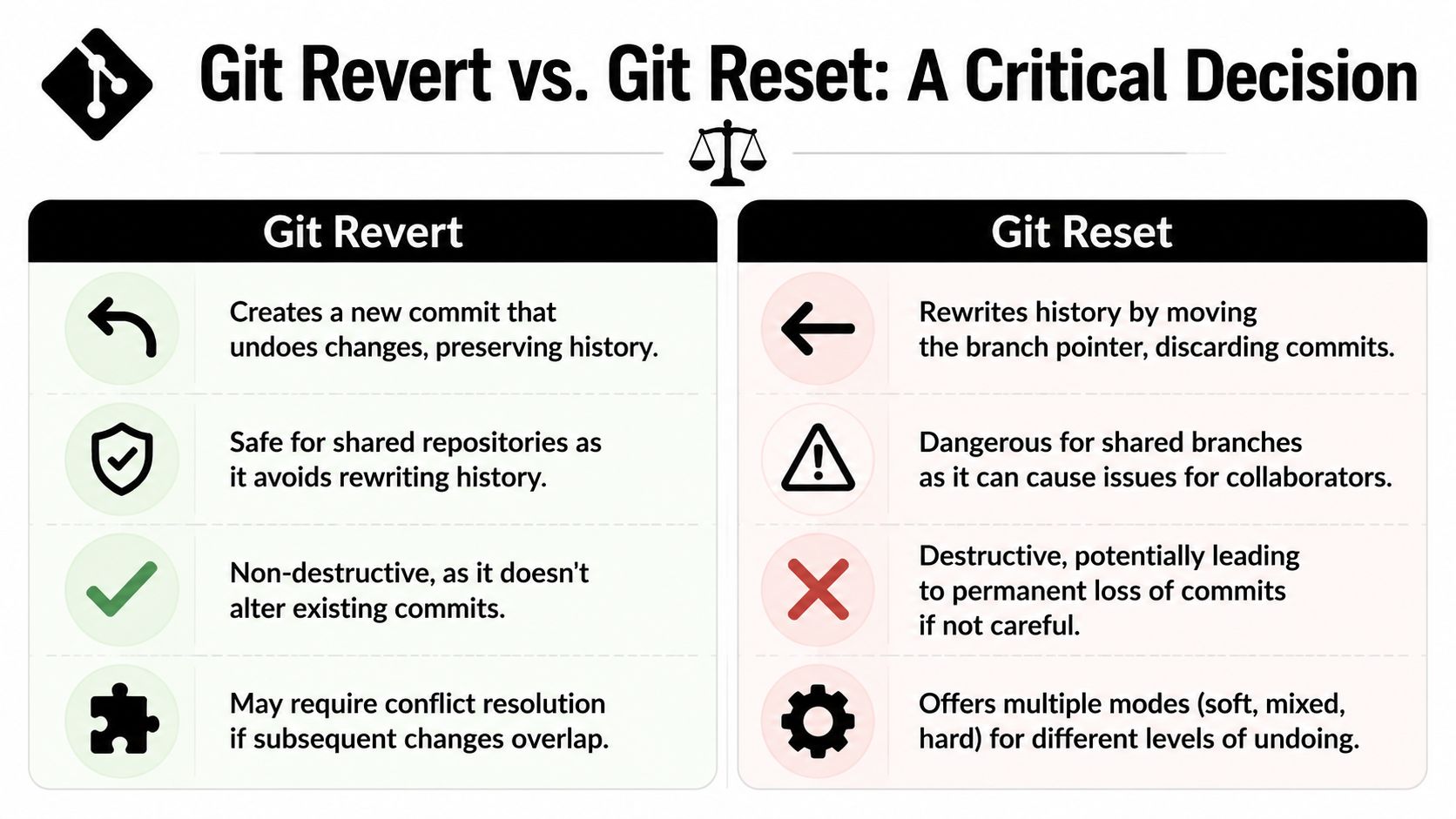
git revert is the safe choice for public history because it adds a new corrective commit. git reset moves the branch pointer backward and can discard commits from the branch's visible history. On a local feature branch, that can be useful cleanup. On a branch other people use, it can create a mess fast.
git revert is explicitly recommended over destructive alternatives because it preserves the complete commit graph, which is critical in shared repositories where 99.9% of enterprise teams require audit trails. It also aligns with change management expectations, where 92% of organizations mandate non-destructive undo procedures, based on the verified data provided for this article.
Git Revert vs Git Reset When to Use Each
| Characteristic | Git Revert | Git Reset |
|---|---|---|
| What it does | Creates a new commit that undoes an earlier commit | Moves the branch pointer backward |
| History | Preserves existing history | Rewrites visible branch history |
| Shared branches | Safe default | Risky and often inappropriate |
| Pushed commits | Usually the right choice | Can require force-push and disrupt teammates |
| Auditability | Clear record of mistake and correction | Earlier commits may disappear from branch history |
| Typical use | Undoing bad work already shared | Cleaning up local work before pushing |
A good rule is simple:
- Use revert when the commit is already on a branch other people may pull from.
- Use reset when you're cleaning up your own unpublished local history.
- Stop and think before force-pushing anything a teammate might already have.
This walkthrough pairs well with a visual explanation:
What works in practice
Teams stay out of trouble when they treat branch history as a shared record, not a scratch pad. On main, the default undo should be reversible, reviewable, and obvious in the log. git revert does that well.
What doesn't work is using git reset --hard on a shared branch because it feels faster. It may be faster for the person typing the command. It isn't faster for the teammate who now has diverged local history and has to recover.
Shared branches need boring, traceable fixes.
git revertis boring in the best possible way.
Handling Advanced Cases Reverting Merges and Commit Ranges
Single commits are easy. Merge commits and grouped bad changes are where people hesitate, and for good reason.

Why merge commits need extra context
A merge commit has more than one parent. When you revert it, Git needs to know which parent is the mainline history you want to keep.
That's why a plain command like this often isn't enough:
git revert <merge-commit-sha>
You usually need -m to specify the parent:
git revert -m 1 <merge-commit-sha>
In a common workflow where a feature branch was merged into main, -m 1 typically means “keep the first parent,” which is usually the main side of the merge. The revert then removes the effect of bringing in the feature branch while preserving the mainline branch history.
This isn't an edge case you can ignore. Data from GitHub issue trackers shows a 42% increase in “revert conflict” errors in Q1 2026 when reverting commits that were part of merge operations, and the same discussion notes that recent Git CLI changes require stricter handling, which is why knowing the -m flag matters, as summarized in this explanation of Git revert and merge behavior.
If you don't understand which parent you're keeping, don't run the merge revert yet. Inspect the history first.
Helpful commands before reverting a merge:
git log --oneline --graph
git show <merge-commit-sha>
Reverting a range without making a mess
Sometimes one bad commit isn't the issue. A cluster of related commits landed together and all need to be undone.
A practical approach is to revert multiple commits into a single reviewable change instead of creating a chain of tiny rollback commits. One pattern is to stage the inverse patches first and then commit once:
git revert --no-commit <older-sha>^..<newer-sha>
git commit -m "Revert problematic batch from feature rollout"
That gives you a cleaner history and lets you inspect the combined rollback before finalizing it.
Use this approach carefully:
- Check order first: Reverting several commits can surface dependencies between them.
- Review the staged diff: Make sure the combined inverse patch reflects the state you want.
- Be cautious with merges inside the range: A range that includes merge commits deserves extra review before you hit commit.
In complex repositories, restraint beats speed. Revert only what you understand.
Navigating Conflicts During a Revert
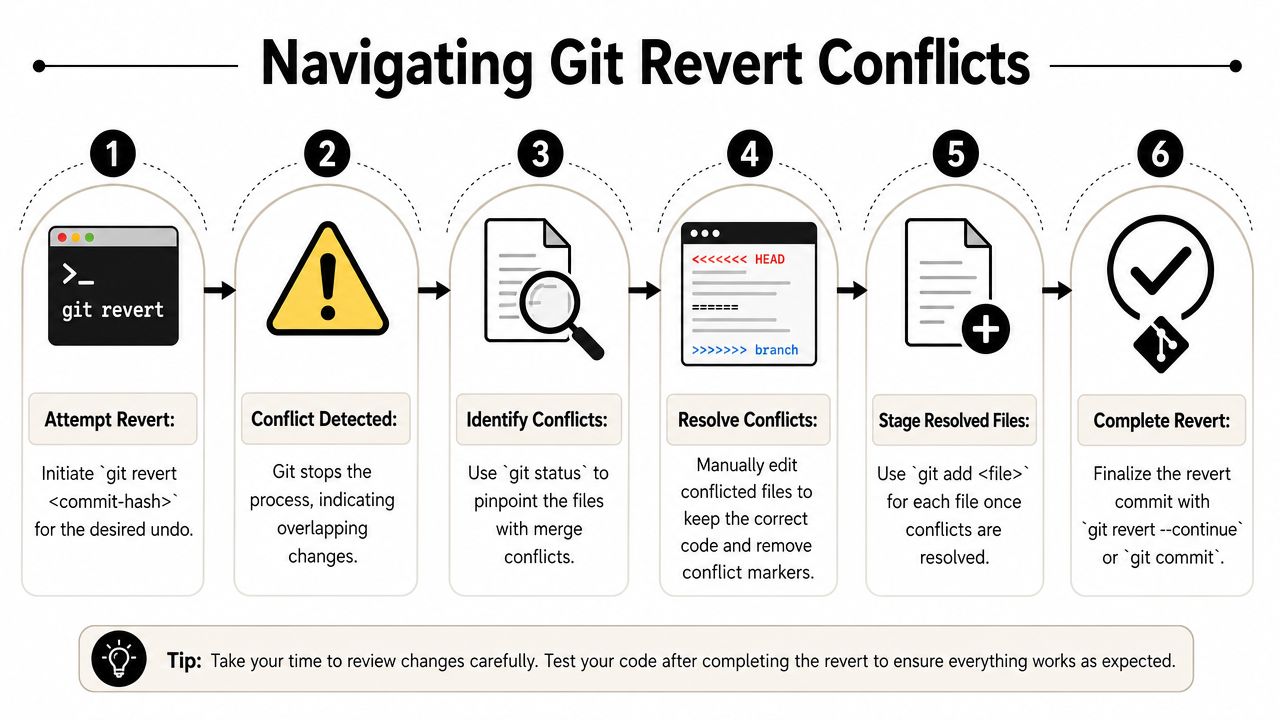
A revert conflict doesn't mean Git failed. It means the repository history became non-linear enough that Git needs a human decision.
What a revert conflict actually means
Conflicts usually happen when later commits touched the same lines that the target commit originally changed. Git can calculate the inverse patch, but it can't always decide how that inverse should interact with newer edits.
Merge conflicts occur in approximately 30% of complex multi-developer projects when reverting, and using git revert --no-commit <SHA> to stage the revert before creating the commit can reduce conflict-related workflow interruptions by 25%, according to this Reddit discussion on reverting without reverting everything after it.
That's why experienced developers often avoid the one-shot revert when the history looks messy. They stage first, inspect second, commit last.
A calm conflict workflow
When Git stops with conflicts, don't thrash around. Follow a repeatable sequence.
Run:
git statusThis shows which files need attention.
Open each conflicted file and look for conflict markers such as
<<<<<<<,=======, and>>>>>>>.Edit the file into the state you want. That may mean keeping part of the newer code while still removing the bad logic from the earlier commit.
Mark each fixed file as resolved:
git add <file>Continue the revert:
git revert --continue
If you started with --no-commit, you may instead finish with a normal commit once the staged changes are right:
git commit -m "Revert <sha> after resolving conflicts"
A practical habit is to start complex reverts like this:
git revert --no-commit <SHA>
That pauses before the commit is created and gives you room to inspect the inverse patch, run tests, and adjust anything Git couldn't safely infer.
Treat conflict resolution as code review under pressure. Slow down, check the intent of the original change, and make the final state explicit.
A few habits help:
- Read the original commit:
git show <SHA>often explains why the code was changed. - Run tests after resolving: A revert can compile and still be logically wrong.
- Avoid panic commits: “fix conflict” is a poor message unless the branch history already makes the intent obvious.
Pushing Reverts and Collaborating with Your Team
Once the revert commit exists locally, sharing it is usually the easiest part:
git push
That simplicity is one of the best reasons to prefer revert on shared branches. You don't need to force-push because you didn't rewrite history. You appended a new commit that tells the truth about what happened.
Why a normal push is enough
A revert commit behaves like any other commit in your CI pipeline. It triggers the same validation flow as a feature change. That's good. Rollbacks need testing too.
Using git revert with --no-commit is standard in CI/CD workflows, allowing 82% of automated deployment systems to include inspection stages before committing a rollback, and 65% of developers prefer that pattern because it reduces erroneous reverts by 30%, according to the verified data provided for this article.
That inspection-first mindset maps well to modern tooling. If your workflow includes automation across issue tracking, chat, deployment, or internal approvals, teams usually benefit from connecting those systems instead of handling rollback communication manually. A practical example is using managed workflow connections like Donely integrations to keep operational steps visible across tools.
Team habits that prevent confusion
The command is only half the job. The rest is communication.
A few habits make reverts much less disruptive:
- Say what you reverted: Post the commit hash and a one-line reason in Slack, Teams, or your PR thread.
- Mention whether follow-up work is coming: Sometimes the revert is temporary while a fix is prepared.
- Link the issue or incident: Future readers should be able to connect the revert to the problem that triggered it.
If the reverted change touched a core service, tell people before they rediscover it through failing tests or changed behavior. Good teams don't just preserve history. They preserve context.
A revert also deserves the same discipline as any other code change:
- run tests
- verify the affected area manually if needed
- confirm the branch is green after push
What doesn't work is reverting a commit on a busy branch and assuming everyone will infer why. The log records the action. It doesn't replace team communication.
Conclusion Master Revert for a Healthier Codebase
A key lesson behind Git revert to specific commit isn't just syntax. It's judgment.
When a commit is already part of shared history, git revert is usually the safest way to undo it because it records the correction instead of hiding the mistake. That protects your teammates, preserves the branch history, and gives future you a much easier debugging trail. In a healthy repository, the log should tell the truth, including the parts where the team changed its mind.
git reset still has a place. It's useful for local cleanup before work is shared. But on collaborative branches, rewriting history is a shortcut with a blast radius. Revert is slower only if you measure the command itself. At team scale, it's often the faster path because nobody has to recover from force-pushed history.
The biggest mistake to avoid is the wording trap. Reverting a commit means undoing one commit's changes. Reverting to a commit means restoring project state to an earlier point. Those are not the same operation, and mixing them up causes a lot of unnecessary damage.
If your team wants safer engineering habits, clear history helps everywhere: incident response, code review, compliance work, and onboarding. Shared context tools can help too. A centralized knowledge layer like Donely Company Brain makes it easier for teams to keep operational decisions, workflows, and repository practices discoverable instead of tribal.
Use revert when history has already been shared. Use it deliberately. And when conflicts appear, treat them as a normal part of maintaining a real codebase, not as proof that you picked the wrong tool.
If you're building AI-powered operations around engineering, support, or internal workflows, Donely gives you a single platform to launch and manage AI employees with isolated instances, audit-friendly controls, and broad tool integrations, without adding DevOps overhead.