
Most advice on how to SSH into a Docker container starts with commands. That's backwards.
The first question isn't how to enable SSH. It's whether SSH belongs there at all. In most day-to-day Docker work, it doesn't. Containers aren't virtual machines, and treating them like tiny servers with a login daemon usually adds friction, attack surface, and operational mess for very little benefit.
If you need a shell inside a running container, the best tool is usually docker exec. It's built for this exact job, avoids opening SSH ports, and fits the way Docker works. SSH only makes sense in narrow edge cases, usually because a legacy workflow or a specific tool requires it.
Table of Contents
- The Fundamental Misconception of SSH in Docker
- The Right Way Interactive Shells with docker exec
- Access Methods Compared docker exec vs nsenter vs SSH
- The Last Resort Running an SSH Daemon in a Container
- Secure Access in Multi-Instance and RBAC Environments
- Production Best Practices and Key Takeaways
The Fundamental Misconception of SSH in Docker
A lot of developers search for “SSH into a Docker container” because they want a familiar remote shell. That instinct makes sense. The problem is that it imports a virtual machine habit into a container model that was designed around something else.
Containers are usually single-purpose, ephemeral processes. They start fast, stop fast, and should be replaceable. An SSH daemon pushes in the opposite direction. It adds another process to manage, another service to secure, and another access path that can drift from how the container is supposed to be operated.
The more important issue is architectural, not mechanical. Community discussions captured in this Hacker News thread on SSH in containers explicitly state that running an SSH daemon in non-SSH containers defeats the purpose of containerization and creates security risk and operational fragility. That matches what experienced operators see in practice. Teams often add SSH to “make debugging easier,” then end up maintaining passwords, keys, exposed ports, and custom images they never really wanted.
Containers aren't mini servers
If your mental model is “I need to log into the box,” you'll keep reaching for SSH. Docker's model is closer to “I need to inspect or interact with the running process.” That's a different problem, and Docker already solves it with native tooling.
Practical rule: If the container's job is not to provide SSH as its product, don't install an SSH daemon just to get a shell.
That rule cuts out a lot of bad habits early.
Why the common tutorials miss the point
Most tutorials show you how to install openssh-server, expose port 22, and connect. Those steps can work. That doesn't make them the right default. They answer the narrow technical question while skipping the operational question: what are you optimizing for?
Usually you want one of these instead:
- Quick debugging: Open a shell with
docker exec. - One-off inspection: Run a single command with
docker exec. - Deep namespace troubleshooting: Use
nsenteron the host. - Configuration changes: Rebuild the image or mount the right volume.
If you start there, your workflow stays aligned with immutable infrastructure and cleaner runtime boundaries. SSH becomes the exception, which is where it belongs.
The Right Way Interactive Shells with docker exec
docker exec is the tool to use when you think you need to SSH into a Docker container. It gives you a shell or runs a command in an already running container, without adding a daemon, exposing a port, or carrying SSH credentials around.

Why docker exec is the default
There's a speed benefit as well as a security benefit. CircleCI's write-up on accessing Docker containers says professional benchmarks suggest docker exec is 3-5 times faster for one-off debugging than establishing a full SSH tunnel, because it skips SSH key exchange and session initialization. For routine inspection, that difference matters.
It also fits the trust boundary you already have. If a user can run Docker commands on the host, they can interact with the container through the Docker Engine. There's no need to bolt on a second remote-access system.
Here's the basic shape:
docker exec -it my-container bash
If the image doesn't include Bash, use sh:
docker exec -it my-container sh
The flags matter:
-ikeeps STDIN open so you can interact with the process.-tallocates a TTY so the shell behaves like a normal terminal.
For a one-off command, skip the interactive shell entirely:
docker exec my-container ps aux
docker exec my-container cat /etc/os-release
docker exec my-container printenv
Common docker exec patterns
The most useful pattern is the simplest one. Open a shell, inspect the filesystem, check environment variables, and exit.
A few examples show how flexible it is:
docker exec -it my-container bash
docker exec -it -w /app my-container sh
docker exec -it -e DEBUG=1 my-container bash
That lets you change the working directory or pass an environment variable for the exec session without rebuilding the image.
When I'm debugging application startup issues, I usually stick to a short sequence:
docker psto confirm the right container is running.docker exec -it <name> shorbash.- Check process state, mounted files, and env vars.
- Exit cleanly and fix the image or runtime config, not the container by hand.
The goal isn't to “work inside” the container. The goal is to inspect reality, learn what's wrong, and then make the fix reproducible.
That's the operational difference between container debugging and server administration.
A quick walkthrough can help if you haven't used it much:
Another good habit is to avoid turning docker exec into a permanent workflow. If you keep changing files interactively and hoping the container stays alive, you're already drifting toward the wrong model. Use docker exec to observe and verify. Then move the actual fix into the Dockerfile, entrypoint, environment, or volume definition.
Access Methods Compared docker exec vs nsenter vs SSH
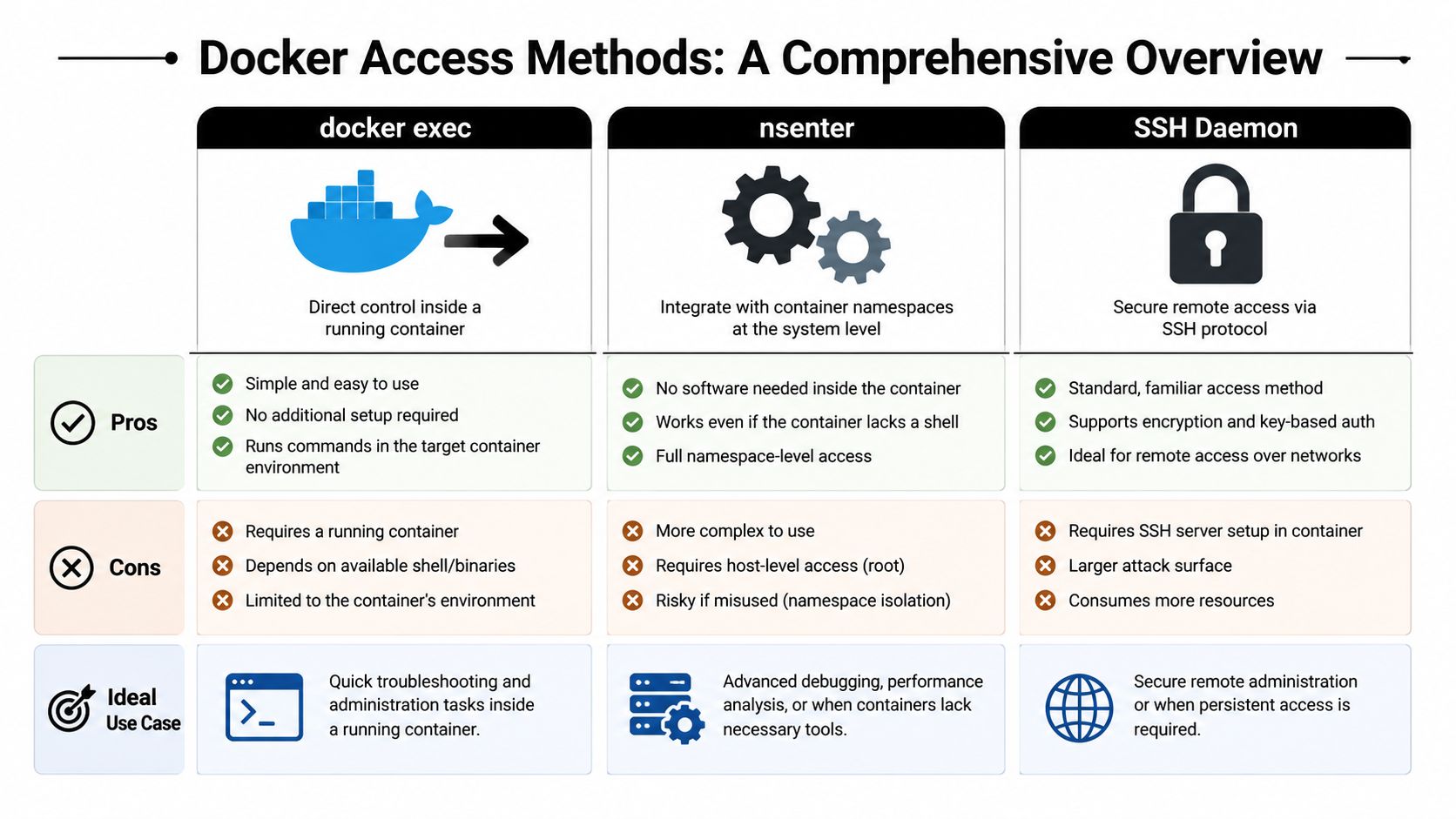
When you need access to a containerized workload, the right tool depends on the job. Most developers only need one layer of this stack, but it helps to know where the boundaries are.
What each tool is actually for
docker exec is the standard operator tool. It's the cleanest option when the container is running and you want a shell, a one-off command, or quick inspection.
nsenter is lower level. It lets you enter namespaces directly from the host. That's useful when Docker's own abstractions aren't enough, especially for advanced debugging around processes, mount points, or networking. It's more powerful, but it's also easier to misuse if you don't understand Linux namespaces well.
SSH is the odd one out. It can provide remote access, but only after you intentionally install, configure, expose, and run an SSH service in the container. That's a lot of setup for something Docker already handles more directly.
Decision guide
Here's the simplest way to compare them:
| Method | Setup complexity | Security profile | Best fit |
|---|---|---|---|
docker exec |
Low | Stronger default posture because you don't expose SSH ports | Routine debugging and inspection |
nsenter |
Medium to high | Powerful but host-level access needs discipline | Deep system or namespace debugging |
| SSH daemon | High | Weakest default posture because it adds a listening service and credential path | Legacy workflows or explicit SSH service use cases |
A few practical rules help more than a feature checklist:
- Use
docker execwhen the container is healthy enough to run commands and you need fast access. - Use
nsenterwhen you need namespace-level visibility from the host and Docker's command surface isn't enough. - Use SSH only when some external constraint forces it.
nsenteris a surgeon's tool.docker execis a mechanic's tool. SSH is usually baggage from an older operating model.
That framing keeps teams from overengineering access patterns.
If you support multiple environments, consistency matters too. docker exec works well because it maps directly to how operators already think about containers as managed runtime units. nsenter is best reserved for people who understand what crossing namespace boundaries means. SSH, by contrast, often encourages the least useful behavior: treating a disposable runtime as a hand-managed machine.
The Last Resort Running an SSH Daemon in a Container
Sometimes you really do need SSH. A legacy integration might expect it. A CI workflow might require a persistent remote session. A specialized development tool might only support SSH-based remoting. In those cases, you can do it, but you should treat it as a constrained exception.

What has to change in the image
A standard image won't accept SSH connections out of the box. Kinsta's guide to SSH in Docker containers notes that standard Docker images typically do not include an OpenSSH server, so you must manually install openssh-server, start the daemon, and publish a port such as -p 2222:22.
That means SSH starts in the Dockerfile, not as an afterthought after deployment. At minimum, you need to:
- Install the server package:
openssh-serverhas to exist inside the image. - Expose the SSH port: usually container port
22. - Start the daemon: often through the container's entrypoint or startup command.
- Handle credentials: a user, password, or preferably key-based auth.
- Avoid host conflicts: map to a different host port such as
2222.
A minimal example looks like this:
FROM ubuntu:20.04

RUN apt update && apt install -y openssh-server
RUN mkdir /var/run/sshd
RUN useradd -m -s /bin/bash appuser
RUN echo 'appuser:change-me' | chpasswd
EXPOSE 22
CMD ["/usr/sbin/sshd", "-D"]
This is functional, not ideal. It increases image size, adds a listening service, and creates another place where secrets and configuration can go wrong.
A minimal last-resort workflow
Build the image:
docker build -t my-ssh-image .
Run it with a host port mapping:
docker run -d -p 2222:22 --name my-ssh-container my-ssh-image
Then connect:
ssh appuser@localhost -p 2222
If you need direct container addressing rather than host port mapping, the container's IP can be retrieved with docker inspect. Some environments use that approach, especially when operators are working inside container networks rather than from the host edge.
If you're designing this for an internal platform or managed workload, it's smarter to make the exception explicit and documented. A hosted environment for agent workloads or automation stacks should state clearly when shell access is allowed, how it's audited, and who owns the SSH surface. That matters even more in managed deployments such as Hermes agent hosting.
Why connections still fail
Most failed attempts to SSH into a Docker container come down to a short list of mistakes:
- No SSH service running: Installing the package isn't enough.
sshdhas to be started. - No port mapping: If you didn't publish the port at
docker runtime, outside traffic can't reach it. - Wrong port choice: If the host already uses port
22, map the container to something else and configure accordingly. - Bad image design: If the container exits when its main process ends, your SSH session disappears with it.
You also need to be realistic about security. Password auth is convenient for demos and usually wrong for production. Baking credentials into an image is worse. If SSH is unavoidable, restrict who can use it, keep the daemon configuration tight, and treat the image as a special-purpose artifact rather than a normal app container.
Secure Access in Multi-Instance and RBAC Environments
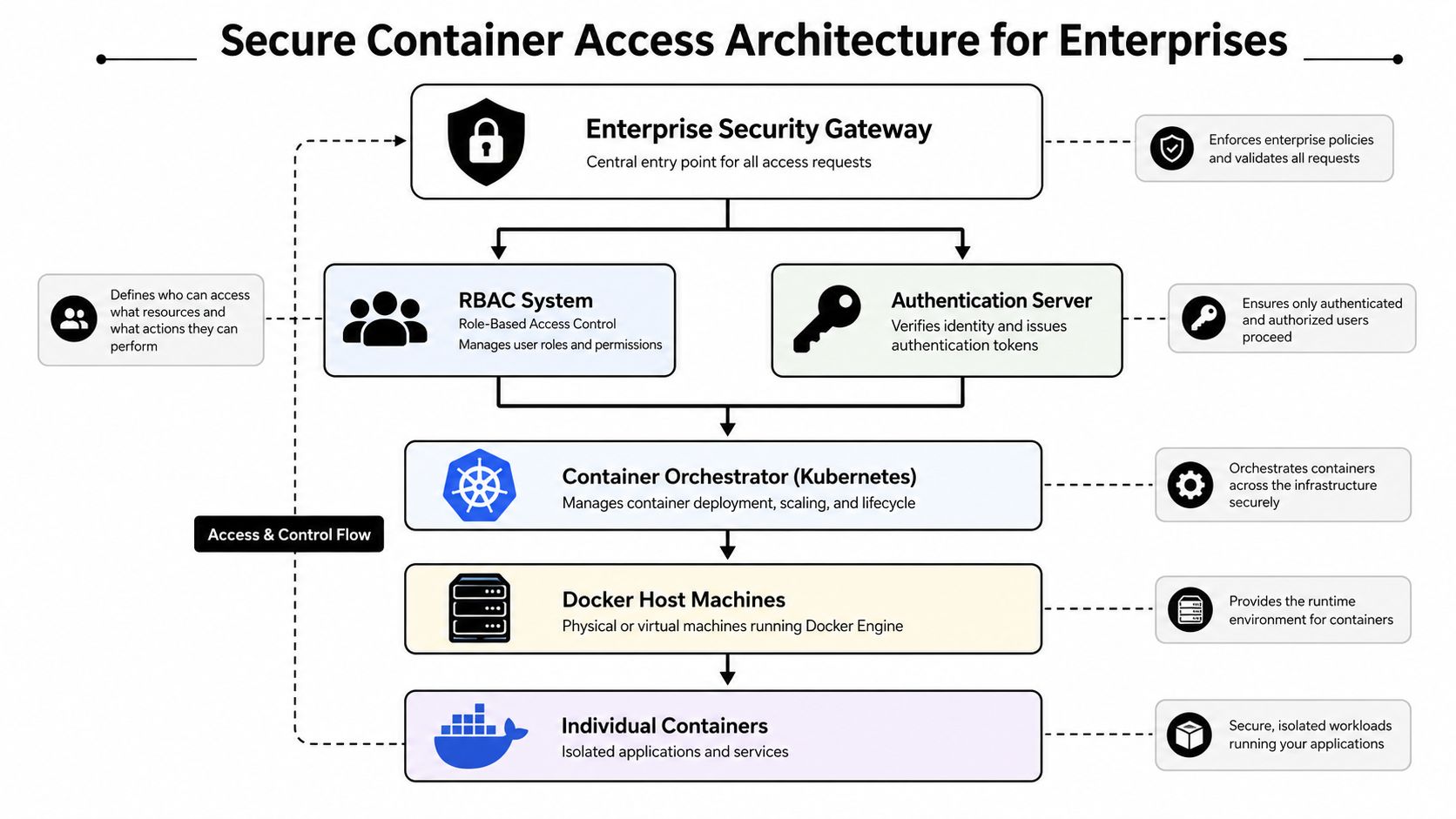
SSH gets even harder to justify once you leave a single developer laptop and move into shared environments. In multi-instance systems, agency setups, and enterprise platforms, the problem isn't just shell access. It's who gets access, to what, and with what audit trail.
Why SSH breaks down at scale
Once teams manage many isolated workloads, exposed SSH ports become a liability. Every daemon adds another path to secure, monitor, and explain to auditors. That's one reason Netmaker's discussion of SSH into Docker containers emphasizes immutable infrastructure and zero-trust security, while pointing to safer alternatives such as docker exec for deep debugging and sidecar containers for config editing via shared volumes.
That trend matches broader access-control practice. If you want a concise primer on assigning permissions by role instead of by ad hoc shell access, F1Group's explanation of role-based access control is a useful reference. RBAC isn't just an identity concept. It shapes how operators should reach workloads in the first place.
Better enterprise patterns
In real systems, secure container access usually looks more like this:
- Audited native access: Operators use platform-approved exec mechanisms rather than direct SSH.
- Sidecar-based editing: Temporary helper containers share volumes when config inspection or file changes are needed.
- Centralized logs first: Teams read structured logs and events before opening a shell.
- Role-scoped permissions: Only specific roles can perform runtime inspection, and those actions are recorded.
A platform built for isolated workloads should make those patterns easier than opening a terminal to everything. For teams running multiple agent instances, separate client workloads, or compliance-sensitive automations, that usually means central access control, scoped runtime permissions, and a clear operator boundary instead of free-form shelling into containers. Systems designed around managed Hermes agent deployments are most useful when they reduce the need for direct runtime access, not when they encourage it.
In mature environments, shell access is a controlled exception. Observability, policy, and reproducible deploys do most of the work.
That's the operational maturity line. If engineers still need SSH everywhere, the platform usually has an access design problem, an observability gap, or both.
Production Best Practices and Key Takeaways
If you remember one thing, make it this: don't reach for SSH first when you need to inspect a container. Reach for docker exec. It aligns with Docker's design, avoids a second remote-access plane, and keeps your runtime model cleaner.
A production checklist
Use this checklist when deciding how to access a container in production:
- Default to
docker exec: It should be your standard path for interactive shells and one-off commands. - Treat containers as replaceable: Fix the image, entrypoint, environment, or volume config instead of hand-tuning a live container.
- Reserve SSH for narrow exceptions: If a tool or legacy process requires it, isolate that pattern and document it.
- Keep access auditable: Use platform controls that record who executed what and when.
- Avoid broad network exposure: A listening SSH daemon creates a security burden you usually don't need.
- Plan for lifecycle behavior: PhoenixNAP's guide on SSH into Docker containers notes that SSH connectivity depends on network reachability and the container's IP from
docker inspect, and that containers may terminate the session if the main process exits unless you detach withCtrl+PthenCtrl+Q. - Harden the image itself: If you're reviewing runtime access strategy, you should also harden Docker images so the underlying container isn't easy to misuse.
For managed application and agent workloads, the healthiest pattern is simple. Restrict shell access, rely on logs and metrics first, and keep runtime changes reproducible. If you're deploying workloads that need stable hosting with fewer hand-built operational steps, a managed option such as OpenClaw hosting makes more sense than normalizing SSH as your day-to-day debugging path.
If you're deploying AI agents and want the infrastructure, isolation, and access controls handled for you, Donely gives you a clean path to run and govern production workloads without turning container access into a security problem.