
You're probably here because a deploy worked yesterday, your VM is still up, and now your terminal says ssh: connect to host … port 22: Connection refused. That message feels simple, but it's useful. It usually means the server answered your TCP knock and said nothing is listening there, or something on the path rejected the connection fast enough that you didn't get a timeout.
That's good news. A refusal is usually easier to debug than silence. For teams running cloud VMs, containers, and headless services like AI agents, this problem often comes from a short list of mistakes: SSH never started after a package update, the service moved to a custom port, or a cloud rule and host rule drifted apart after initial setup.
Table of Contents
- The Three Most Likely Culprits
- Your First Responder Quick Checks
- Is SSHD Running and Listening Correctly
- Unblocking the Path Firewalls and Security Groups
- Advanced Scenarios Containers and Configuration Traps
- Prevention and Hardening Your SSH Setup
The Three Most Likely Culprits
Treat SSH port 22 connection refused as a narrowing signal, not a mystery. In practice, it almost always lands in one of three buckets: you're hitting the wrong host, you're hitting the right host on the wrong port, or you're hitting the right host and port but nothing is listening.
That framing matters because it keeps you from editing sshd_config too early. The most reliable troubleshooting order is to work backward from the client side, then move inward to the server. The Raspberry Pi forum summary still offers a clear breakdown of potential issues: wrong IP address, correct IP but wrong port, or correct IP and port but server not listening. It also notes that this reverse-order path works well because it separates network problems from application problems in this diagnostic breakdown.
What each culprit looks like
- Wrong address: You rebuilt a VM, the public endpoint changed, DNS lagged, or you copied the private address from a cloud console and tried it from outside the network.
- Wrong port: The server is healthy, but SSH was moved to
2222or another custom port and your client still tries22. - Not listening:
sshdis stopped, failed at boot, or started with a config that prevents it from binding where you expect.
Practical rule: “Connection refused” is usually a fast no. That's different from a timeout, which usually means packets are getting dropped somewhere.
Junior admins often lose time because they assume a refusal proves the network is fine. It doesn't. It proves only that you got a decisive answer. A firewall, proxy, or misrouted path can still produce a fast rejection. Start with the simplest checks, confirm the target, then prove whether the daemon is listening.
Your First Responder Quick Checks
Before you open a cloud console or touch the server, do a 60-second client-side triage. The goal is to answer one question: are you chasing the right machine on the right port?

Start with reachability
Run these from your local machine:
ping -c 4 your-hostname
nc -zv your-hostname 22
telnet your-hostname 22
ping is only a rough signal. Some environments block ICMP and still allow SSH, so don't treat a failed ping as final. But if ping works and nc or telnet gives you an immediate refusal, you've learned something useful: the host is reachable, but port 22 isn't accepting sessions.
The sharpest first-pass test is nc -zv. The verified guidance says nc -zv server.example.com 22 returns “Connection refused” in 100% of cases where the daemon is not running, which makes it a clean yes-or-no probe before you even get console access from this RHEL troubleshooting guide.
Confirm you didn't aim at the wrong thing
If you're working in AWS, Azure, GCP, DigitalOcean, or a lab with multiple headless nodes, double-check the target details before assuming the service is broken.
Use a simple checklist:
- Hostname check: Does the hostname still resolve to the instance you expect?
- Recent rebuilds: Did someone replace the VM, restore from snapshot, or rotate networking?
- Port assumption: Are you sure the service still uses
22?
A lot of modern setups, especially container-heavy and bot-exposed systems, move SSH to another port and forget to document it. That's common in solo projects and internal tools because the person who changed it remembers. Everyone else doesn't.
If
telnet your-host 22refuses immediately, focus on listening services and port selection before you start debugging keys, users, or auth methods.
Know when to stop testing from the client
Client-side checks are for direction, not complete diagnosis. If the endpoint is reachable and port 22 refuses consistently, stop guessing from your laptop. Move to the server console, serial console, provider recovery shell, or another working session.
From there, the question becomes straightforward: is sshd alive, and if it is, where is it listening?
Is SSHD Running and Listening Correctly
Most outages end here. The refusal often isn't exotic. It's just sshd stopped, failed, or bound somewhere other than the port you expected.
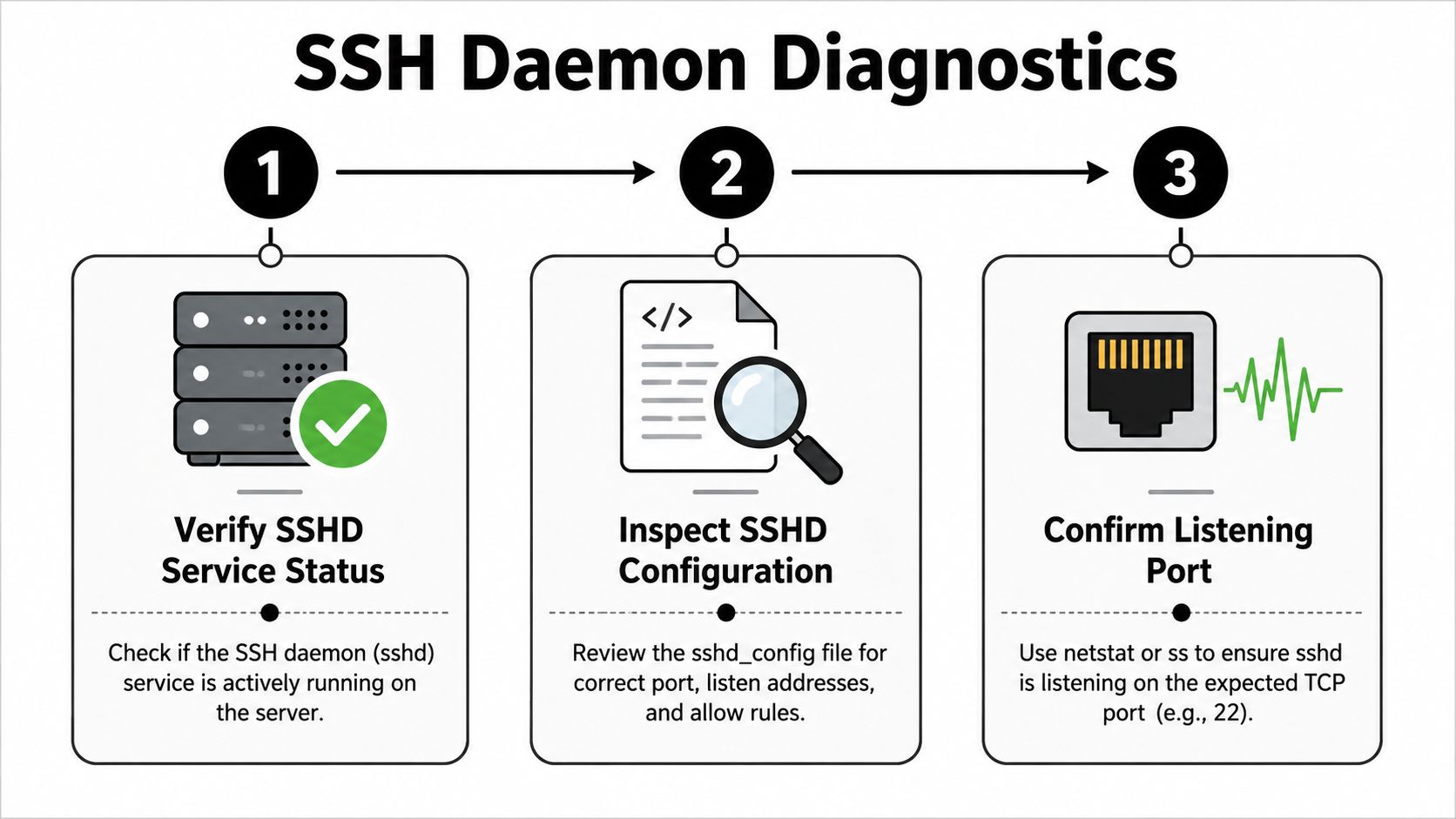
Check the service before the config
Get onto the machine through a console and ask the service manager first:
sudo systemctl status sshd
sudo systemctl start sshd
sudo systemctl enable sshd
On some distributions the service name is ssh instead of sshd, so check both if needed.
Red Hat's verified guidance is blunt here: a connection refused on SSH port 22 indicates that sshd is not running or not listening on the target port. It also says that in 99.9% of documented cases, the root cause is a stopped service, a startup failure caused by config errors, or a non-standard listening port according to Red Hat's troubleshooting note.
That lines up with what many admins see in real environments. Especially on unattended systems, package updates, image changes, or a bad config edit can leave sshd inactive after reboot.
Running is not the same as listening
A green service state doesn't fully prove the endpoint is reachable. You also need to see the socket:
sudo ss -lnp | grep 22
sudo ss -tlnp | grep sshd
Look for a listening socket on the expected interface and port. If you see 2222 instead of 22, the service is up, but your client command is wrong. If you see it bound only to localhost or a narrow ListenAddress, remote clients won't get in.
If you want another way to inspect sockets, a good refresher is this walkthrough on how to check network ports with netstat -a. It's useful when you're on older systems or cross-checking what ss shows.
Here's the distinction that trips people up:
| State | What it means | What to do |
|---|---|---|
systemctl says inactive |
SSH daemon isn't running | Start it and inspect logs |
| Service is active, no port 22 listener | SSH is up incorrectly or on another port | Check Port and ListenAddress |
| Listener exists on another port | Port mismatch | Connect with ssh -p ... |
| Listener exists on 22 | Service side may be fine | Check firewall layers next |
Validate the config before you restart again
Bad SSH config edits cause avoidable outages. Validate before bouncing the daemon:
sudo sshd -t
sudo grep -E "^Port|^ListenAddress|^AllowUsers|^AllowGroups|^DenyUsers|^DenyGroups|^Match" /etc/ssh/sshd_config
Common breakpoints include:
- Custom port drift:
Port 2222is set, but docs and scripts still use22. - Restrictive bind:
ListenAddresspoints at the wrong interface. - Access rules:
AllowUsersorAllowGroupsexcludes the account you're trying to use. - Third-party edits: automation tools or security packages changed ciphers or options in ways your OpenSSH build won't accept.
Later-stage logs tell you why a restart failed. Use:
sudo journalctl -u sshd
If the daemon failed to start, Red Hat notes that journalctl -u sshd will show error or fail messages within a short diagnostic window after the failure, which makes logs the fastest way to stop guessing.
A short video walkthrough can help if you're doing this under pressure and want to compare your screen to a known-good flow:
A healthy SSH setup has three layers in agreement: the service is running, the config is valid, and the socket is listening where the client expects.
Unblocking the Path Firewalls and Security Groups
You can have a healthy sshd process and still get locked out if the packet never reaches it. That happens all the time on cloud VMs, forgotten AI worker hosts, and boxes that were hardened once and then left alone for months. After you confirm the daemon is listening, treat the network path as the problem until you prove otherwise.
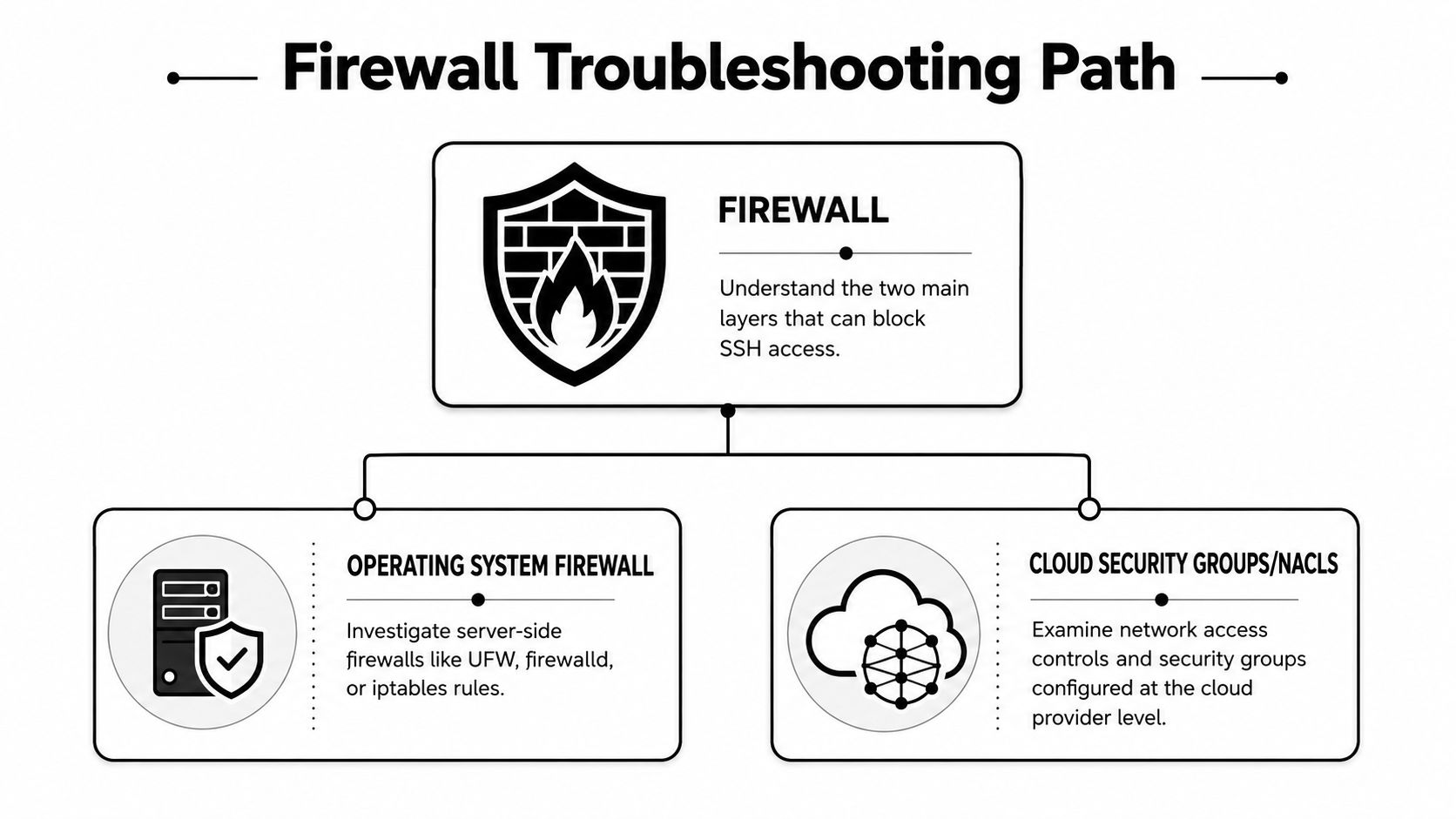
The host firewall layer
Start on the server. The goal is simple: confirm the OS is willing to accept TCP traffic on the port where sshd is listening.
On Ubuntu and Debian, check UFW first:
sudo ufw status verbose
sudo ufw allow ssh
ufw status verbose shows whether UFW is active and whether a rule already permits SSH. ufw allow ssh opens the default SSH service definition, which usually maps to TCP 22. If your daemon listens on another port, allow that port directly instead of assuming the named service still matches your setup.
On RHEL, CentOS, AlmaLinux, or Rocky, check firewalld:
sudo firewall-cmd --list-services
sudo firewall-cmd --add-service=ssh --permanent
sudo firewall-cmd --reload
--list-services shows what the active zone currently permits. --add-service=ssh --permanent writes the rule so it survives reboot. --reload applies it without making you restart the machine. If SSH runs on 2222 or any other custom port, use a port rule instead of the ssh service entry.
If the host uses raw iptables or nftables, inspect the input chain for DROP or REJECT rules that hit your SSH port. A reject usually returns fast and looks like an immediate refusal. A drop often looks more like a timeout. That distinction saves time.
The cloud firewall layer
Cloud policy is a separate gate. AWS Security Groups, Azure Network Security Groups, GCP firewall rules, and similar controls decide whether the packet even reaches the VM.
Check the platform control that applies to your instance:
- AWS: Security Groups, and sometimes Network ACLs
- Azure: Network Security Groups
- GCP: VPC firewall rules
- DigitalOcean and similar platforms: provider firewall controls
This layer gets missed on headless systems. A team stands up a VM for an AI agent, background worker, or internal automation job, confirms SSH once, and stops thinking about it. Months later someone clones the instance, tightens inbound policy, swaps subnets, or rebuilds from an image that never had the right rule. The workload still runs. Admin access disappears.
I see this a lot with agent hosts because nobody logs in until something breaks. If you are comparing self-managed boxes with managed options for isolated agent workloads, platforms built for OpenClaw hosting reduce the number of firewall layers you have to remember and document by hand.
For teams that also expose services through home labs, office routers, or gateway firewalls, this practical guide to port forwarding is useful because it explains how traffic is translated before it reaches the host. The same model applies when you troubleshoot NAT, bastion hosts, and private subnets.
When both look open but SSH still fails
Work the path in order. Do not guess.
- Listener present, host firewall closed: open the Linux firewall rule.
- Listener present, cloud rule closed: fix the provider-side rule.
- Both open, still refused: verify you are hitting the correct IP and the correct port.
- Custom port in use: make sure every layer allows the same port, including any jump host, VPN policy, or edge firewall.
One more practical check helps here. Test from a nearby machine in the same VPC, subnet, or private network segment. If SSH works internally but not from your laptop, the instance is usually fine and the problem sits at the cloud edge, office firewall, VPN, or port-forwarding layer.
SSH access only works when the service, the host firewall, and the upstream network policy all agree on the same destination port.
If the rule set looks right and the result still makes no sense, capture traffic. tcpdump on the server will tell you whether SYN packets arrive and whether the host sends a reset back. That is how you separate a real network block from a policy mistake that only looks like one.
Advanced Scenarios Containers and Configuration Traps
When the normal checks don't solve it, the problem usually comes from abstraction. Containers, custom ports, security policies, and tiny config mistakes create failures that look simple from the client side and messy everywhere else.
The host port is not always the container port
A common example is Docker or Podman. The container runs SSH on port 22 internally, but the host publishes it on another port:
docker run -p 2222:22 ...
From outside, ssh user@host fails on 22 and the admin assumes the daemon is dead. It isn't. The right command is ssh -p 2222 user@host.
That confusion is growing, especially in headless automation and AI environments where people want to reduce noise from bots. Verified data says 32% of new DevOps setups use custom ports to avoid bot attacks, and many troubleshooting guides still act like port 22 is always the only answer in this discussion of non-standard SSH ports. That's why a port mismatch should stay high on your list.
For teams hosting agent workloads, this gets worse when a reverse proxy, sidecar, or orchestrator owns the host networking and the container only sees internal ports. In those environments, document the published host port, not just the container default. If you're evaluating managed agent infrastructure, the operational trade-offs are easier to see in a platform-oriented setup like Hermes agent hosting.
SELinux and policy mismatches
RHEL-family systems add another twist. You can open the firewall and still fail if SELinux doesn't allow SSH on the custom port you chose.
The symptom is frustrating because it looks like a normal port problem. The process may even appear healthy, but policy stops the expected behavior. If you moved SSH off 22, inspect the allowed SSH port contexts and add the new port with semanage if needed.
Small config mistakes that stop everything
The ugliest SSH outages often come from tiny text edits:
AllowUsersincludes the wrong usernameListenAddressbinds the daemon too narrowly- A bad
Matchblock changes behavior for one group or source - Third-party tooling rewrites options and leaves
sshdunable to start cleanly
One habit prevents a lot of pain: test the config before restart, and keep a second console open while you reload. On remote systems, never bet your only session on an unvalidated SSH change.
Most “mystery” SSH refusals in modern stacks aren't mysteries. They're translation problems between host ports, container ports, policy layers, and assumptions.
Prevention and Hardening Your SSH Setup
A fixed outage is only half a job. If SSH broke once because nobody noticed a drifted config, stale firewall rule, or undocumented custom port, it can break again at the worst possible moment.
Fix the outage, then reduce the blast radius
The short-term lesson is simple: don't leave SSH in a fragile state. Verified benchmark data says restarting sshd resolves approximately 40% of transient “not listening” failures in cloud VMs, and 30% of SSH connectivity failures come from third-party software modifying sshd_config and causing OpenSSL version mismatches that stop the service from starting in this benchmark summary.
That tells you two things. First, transient failures are real, so monitoring the service matters. Second, config drift is a bigger threat than many teams think.
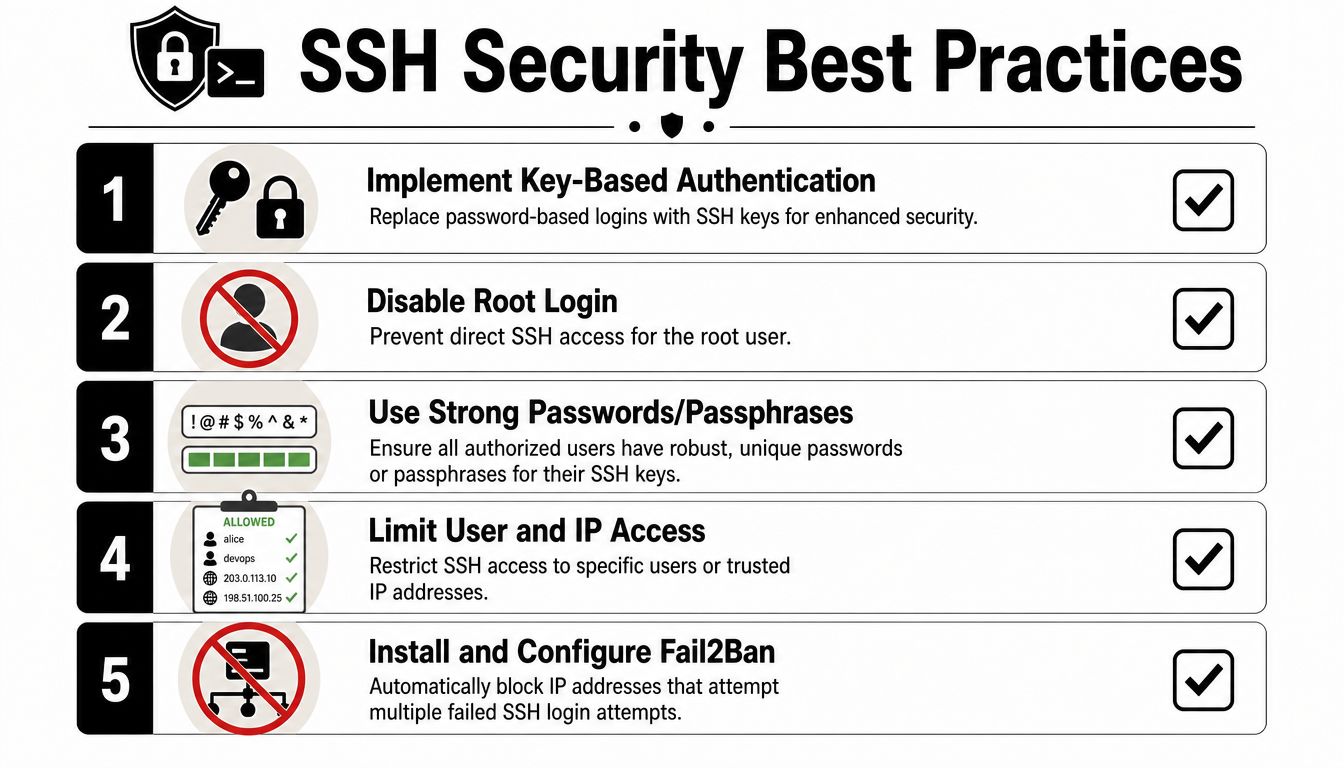
Build a safer default SSH posture
Use a hardened baseline:
- Prefer keys over passwords: Public key auth removes a lot of brute-force exposure and cuts down on weak credential problems.
- Disable direct root login: Use a named user and escalate with
sudowhen needed. - Restrict who can connect:
AllowUsers,AllowGroups, and source IP restrictions help when applied carefully and tested. - Use fail2ban or equivalent tooling: Automatic bans reduce noise and repeated attack attempts.
- Treat custom ports as a minor noise filter, not a primary defense: They reduce random scans but don't replace real hardening.
If you're deciding whether to keep SSH on 22 or move it, this overview of SSH port risks is a useful operational perspective. The answer is usually layered security, not one magic setting.
For organizations running automation, customer workflows, or sensitive integrations, SSH policy should align with broader platform controls like access boundaries, auditing, and incident response. That's the same mindset reflected in a formal security policy.
The admins who avoid repeat outages do one extra thing after recovery: they write down the actual port, the actual firewall path, the expected service name, and the rollback steps. Documentation sounds boring until a midnight reboot proves it isn't.
If you're tired of babysitting SSH on headless AI infrastructure, Donely gives you a simpler path. You can host, deploy, and manage AI employees from one dashboard, with isolated instances, centralized logs, RBAC, and security controls that reduce the DevOps drift behind outages like this. It's a practical option when you want the agents, not the server firefighting.