
You want to share project dashboards with clients without them accidentally changing anything. Read-only access is the answer. But setting it up securely takes more than flipping a switch. Here’s a five-step process that works with most modern SaaS platforms.
Step 1: Understand Your Dashboard Platform’s Permission Model
Start by learning how your platform handles access control. Most tools use role-based access control (RBAC) where you create roles and assign permissions. A typical permission model has three levels: admin, editor, and viewer. The viewer role is what you want for clients , they can see dashboards but can’t edit, delete, or share them.
Some platforms also offer granular permissions: you can restrict visibility to specific dashboards or data sets. For example, you might allow a client to see only their own project metrics, not all projects. This is called “scoped access.”
Before creating any roles, map out what each client should be able to do. Should they filter data by date? Export a PDF? Every extra permission increases risk. Stick to the principle of least privilege: give only the access needed for their workflow.
Step 2: Create a Dedicated Client Role with Read-Only Permissions
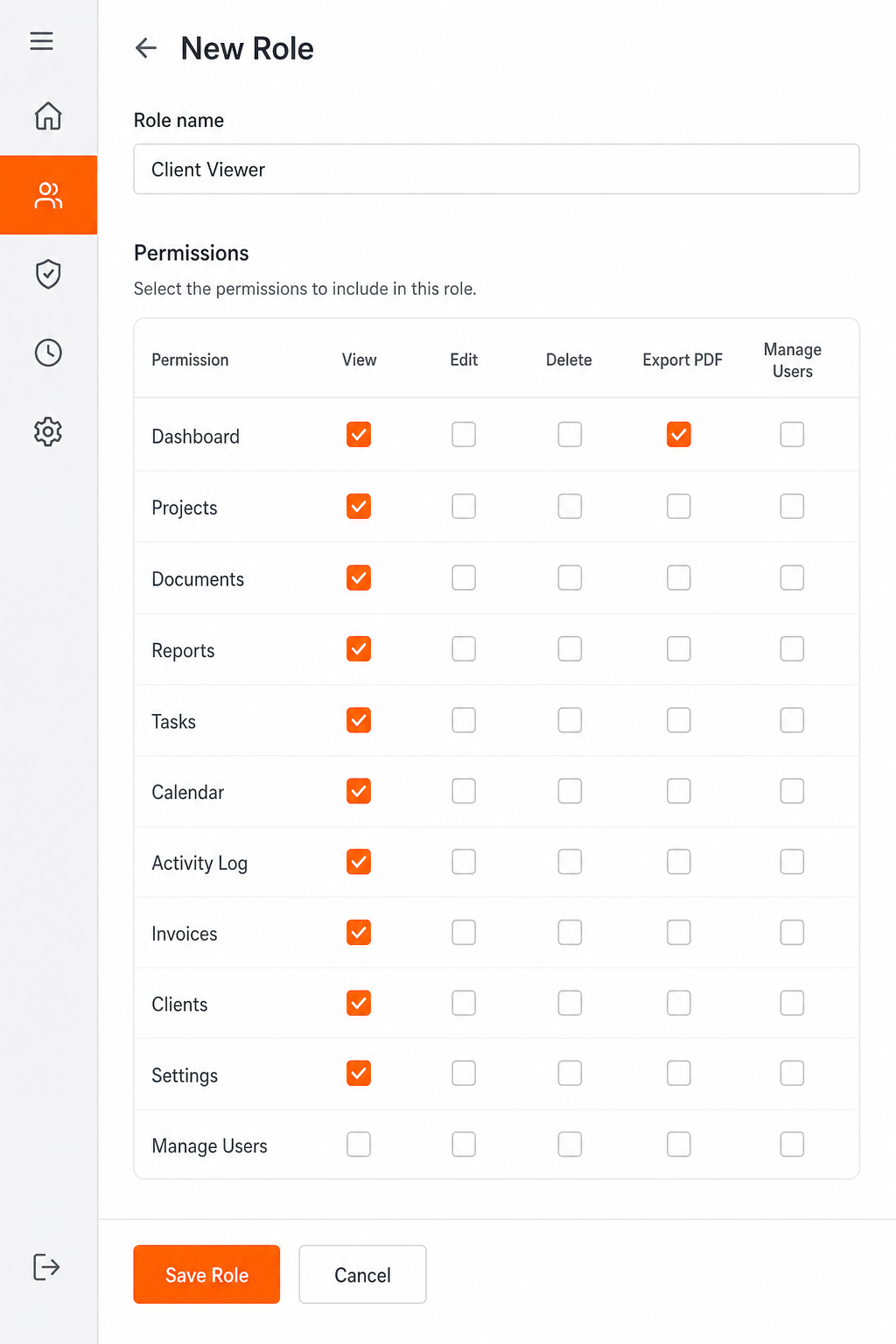
Once you understand the permission model, create a role specifically for clients. In Donely, this is straightforward: go to Settings > Roles, click “Add Role,” name it “Client Viewer,” then uncheck all edit, delete, and share permissions. Leave only “View Dashboard” checked. Save the role.
If your platform supports it, also restrict access to specific clients or tenants. For example, in a multi-tenant setup, you can assign the role to a client user so they only see their own data. This prevents cross-client data leaks.
Test the role by logging in as a test user with that role. Make sure the dashboard loads, but buttons to edit or add widgets are hidden. Check that the user cannot handle to admin areas or other clients’ data.
Step 3: Invite Clients to Their Read-Only Dashboard View
Now invite your client using the created role. The method depends on your platform. In Donely, you can add a user via the Members section: enter their email, select the “Client Viewer” role, and send an invite. They’ll receive an email with a secure login link.
Some platforms support guest access or shareable links. Guest access creates a lightweight account without admin privileges. Shareable links (with unique tokens) let clients view dashboards without even logging in. Both options can be secure if you set expiration dates and limit usage.
Make sure the invitation channel is secure. Never send passwords or login URLs in plain text. Use the platform’s built-in invitation system when possible.
Step 4: Customize the Client Dashboard Experience
Clients should see only what they care about. Remove internal notes, raw data tables, and advanced settings. Focus on key performance indicators (KPIs) relevant to their project. Many platforms let you create dashboard templates that you apply per client.

Brand the dashboard with the client’s logo or colors if possible. This builds trust and makes the experience feel tailored. Donely allows you to customize the dashboard header and footer per client instance.
Also set up data filters so the dashboard automatically shows the client’s data range. For example, if Client X has a project running from Jan to June, the default date filter should reflect that. This removes friction and reduces support questions.
Consider adding a short annotation explaining what each metric means. Not all clients are data experts. A simple tooltip or hover text can prevent confusion.
Step 5: Monitor, Audit, and Revoke Access When Needed
Read-only access doesn’t mean you stop caring. Monitor who accesses dashboards and how often. Most platforms provide audit logs that show user activity. Donely includes built-in audit logs for read-only sessions, so you can see when a client viewed a dashboard and which sections they explored.
Regularly review the list of users with client roles. Remove any who no longer need access , such as former clients or internal testers. Schedule a quarterly audit of all dashboard permissions.
When a client ends their project, revoke access immediately. In Donely, you can deactivate the user or change their role to “No Access.” If you used shareable links, invalidate the token. Also check that cached data in the browser can’t be retrieved.
Frequently Asked Questions
Can I give clients read-only access without them creating an account?
Yes, many tools support guest access or shareable links. Guest access creates a lightweight profile without full credentials. Shareable links with unique tokens allow temporary viewing without login. Both methods can be made secure with expiration and access limits.
What permissions should I remove for a read-only client role?
Remove all edit, delete, share, and manage permissions. Also remove ability to export raw data if not needed. Keep only view privileges for specific dashboards or datasets. Always test the role from a client perspective to ensure nothing is left open.
How do I prevent clients from seeing each other’s data?
Use tenant-level isolation. Assign each client to their own tenant or workspace. When creating the read-only role, scope it to that tenant only. In Donely, you can create separate instances per client with isolated data and credentials. Audit logs can confirm no cross-tenant access occurs.
Can clients s?
No, if you configure the role correctly. Only explicitly granted dashboards and data sets are visible. Avoid sharing any dashboard that contains internal annotations. Create dedicated client dashboards separate from internal ones.
How do I revoke access quickly when a client leaves?
Deactivate the client user account or remove them from the workspace. If using shareable links, invalidate the token immediately. In Donely, you can also change their role to “No Access” and they lose all visibility. Audit logs will show the exact moment access was removed.
Conclusion
Giving clients read-only access to project dashboards doesn’t have to be complex. Understand your platform’s permission model, create a dedicated client role, invite them securely, customize the dashboard, and monitor access. Donely makes this process simple with built-in RBAC, audit logs, and per-instance isolation. Start by setting up a test client role today , it only takes a few minutes.